Core IT & Productivity Skills
Published :

Understanding computer fundamentals means knowing what a computer is and how its main parts work together. A computer system consists of hardware (physical parts like CPU, memory, input/output devices) and software (programs that make hardware usable). Core components include the CPU (the brain that processes data), memory/storage (temporary and long-term data holding), and input/output devices like keyboards and monitors. Grasping these basics is key for anyone starting in IT or computing.
Watch the full beginner-friendly video here: https://www.youtube.com/watch?v=qfUZBKDh9BY
Understanding Operating Systems (OS)
Operating systems like Windows, Linux, and macOS are essential software that manage computer hardware and allow users to run applications. They control memory, files, security, and provide the user interface you interact with daily. Windows is known for wide software support, macOS for seamless Apple device integration, and Linux for flexibility and open-source customization. Learning how different OS work helps you choose the right platform and understand how computers function under the hood.
Learn more from these beginner guides:
Exploring the Internet, Search Engines, and Connectivity
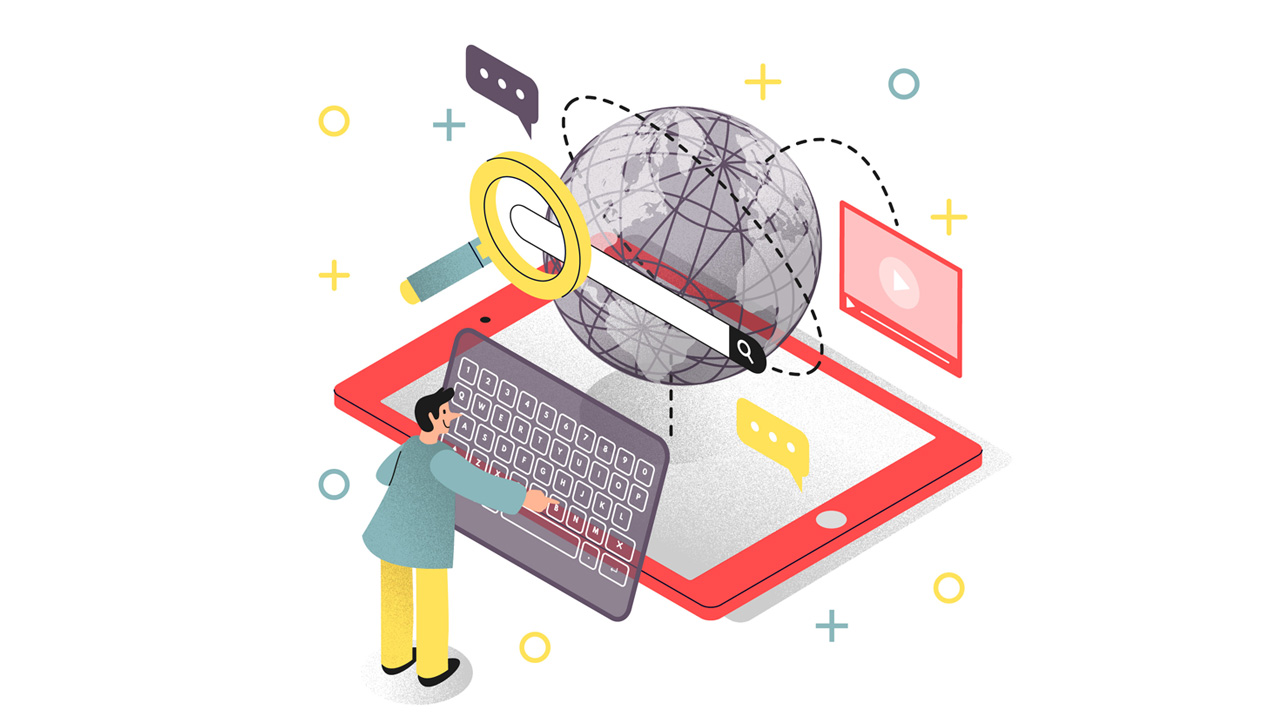
The Internet is a global network connecting millions of devices for communication, data sharing, and services. Connectivity happens through wired, wireless, and mobile technologies that link users to online resources. Search engines like Google and Bing help you quickly find information by indexing web pages and ranking results. Together, these fundamentals make the digital world easy to access and navigate for learning, work, and entertainment.
Learn more with these videos:
Stay Secure Online: Importance of Strong Passwords & Good Practices
In today’s digital world, strong passwords are your first line of defense against cyber threats. Use long, unique combinations of letters, numbers, and symbols for each account. Combine this with two-factor authentication (2FA) and reliable security practices like updating software and avoiding public Wi-Fi for sensitive tasks. Smart habits reduce risks of hacking, identity theft, and data breaches — essential for personal and professional online safety.
Learn more:
Using Zoom, Teams & Google Meet for Collaboration
Modern collaboration relies on video conferencing tools like Zoom, Microsoft Teams, and Google Meet to stay connected, productive, and aligned. Each platform offers high-quality audio/video, screen sharing, chat, and scheduling integrations that help teams work together seamlessly — whether it’s daily standups, client calls, or remote workshops. Choosing the right tool can streamline communication and boost team efficie
Learn how to use them effectively from these tutorials:
- ➡️Microsoft Teams Tutorial (10 min quick guide)
- ➡️https://youtu.be/HbYHaNvCw9M?feature=shared
- ➡️https://youtu.be/7KVZvUxQXMA?feature=shared
Watch this tutorial to master professional email writing:
OneDrive & Cloud Docs
Create, Edit, Save, Share Cloud storage like Microsoft OneDrive makes it easy to store files securely and access them from anywhere. With integrated cloud-based document tools you can create, edit, save, and share documents instantly — collaborating in real time with teammates and tracking changes effortlessly. These essential skills boost productivity for personal use, education, and professional workflows. Learn the basics of uploading, organizing, and sharing files with confidence.

Learn the key features from these videos:
- ➡️How to use Microsoft OneDrive effectively
- ➡️Microsoft Word Ribbon Basics (Word tutorial)
- ➡️https://youtu.be/iHuFzz7Wvt4
Mastering Word & Excel Basics
Microsoft Word and Excel are foundational tools for professional productivity. Word lets you create, edit, and format documents like reports and letters with ease. Excel helps you organize and analyze data using spreadsheets, formulas, and tables — essential for budgeting, reporting, and data tasks. Learning both boosts workplace efficiency and communication across roles.
Learn practical basics from these tutorials:
- ➡️Microsoft Word Tutorial for Beginners — basics, tools, and layout (Word crash course)
- ➡️Excel Tutorial for Beginners — enter data, format, read & filter in Excel
Outlook & Teams for Communication and Collaboration
Microsoft Outlook helps you manage professional email, calendars, contacts, and tasks in one place — ideal for formal correspondence and scheduling. Microsoft Teams is a unified collaboration platform that combines chat, video meetings, file sharing, and teamwork spaces to keep teams connected instantly across projects. Together, they boost productivity by streamlining communication and planning for remote or in‑office environments.
Learn how to use them effectively:
- ➡️https://youtu.be/olLCI8zXewc?si=y6iddRD0c9SJuYQL
- ➡️Microsoft Teams Tutorial — how to meet, chat & collaborate (in ~10 min)
Building Effective Presentations
Great presentations blend clear structure, engaging visuals, and confident delivery. Start with a strong title and agenda, use clean slides with minimal text, and support key points with high‑quality graphics. Practice your delivery to maintain eye contact and engage your audience. Simplicity and focus on essential ideas help ensure your message resonates and sticks with listeners.
Improve your skills with these tutorials: